Start from the booking
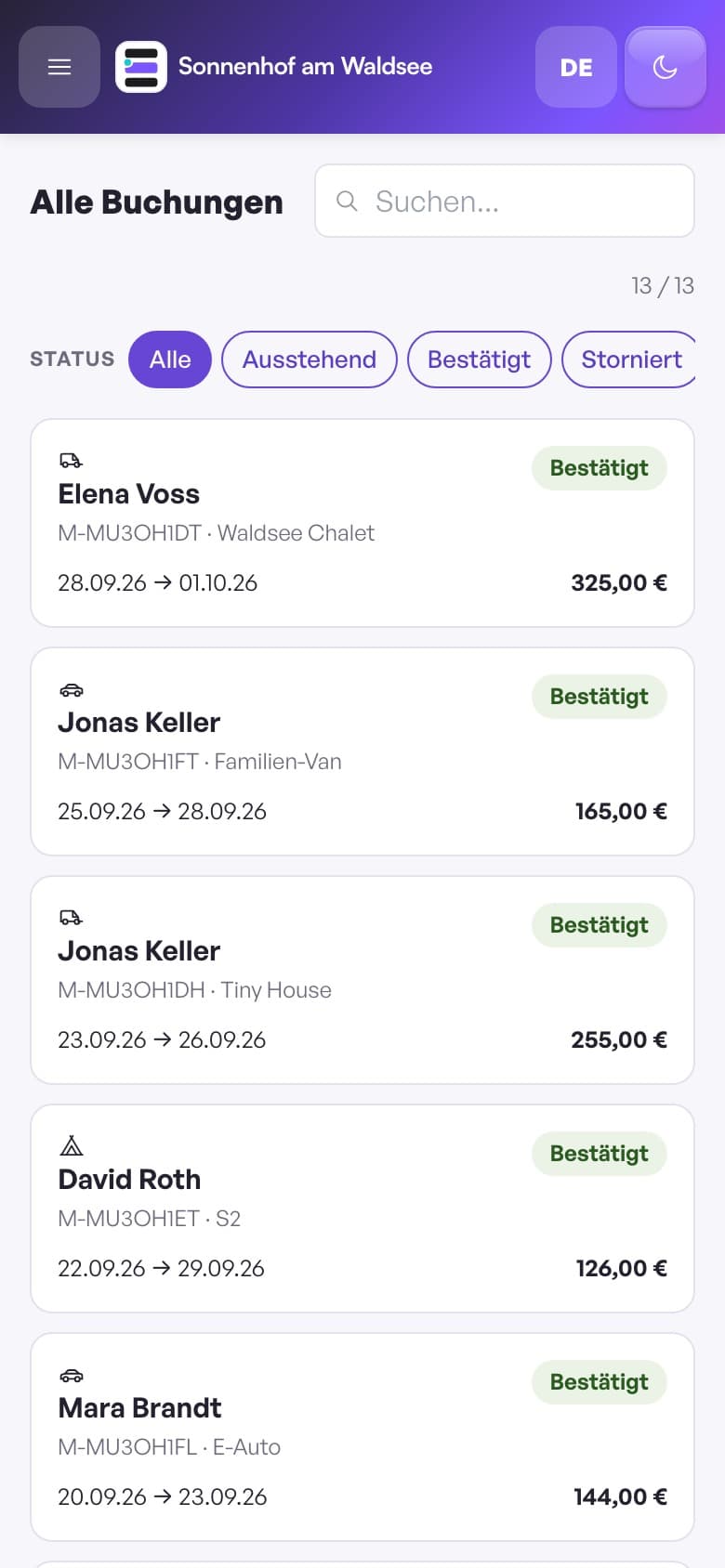
Guest, unit, dates, services and prices are already available.
Create branded invoices directly from a booking, send them by email and see at a glance what has already been paid.
 Keep it Simple Booking
KISB uses the booking data already on file. You only review what belongs on the invoice instead of retyping the guest, dates and line items.
Guest, unit, dates, services and prices are already available.
Adjust taxes, extras, invoice number, due date and notes.
Approve it yourself or use a defined sending rule for your business.
Open, partial and fully paid amounts remain traceable on the booking.
Best when you want to review or personalise every invoice before it leaves your system.
For consistent workflows, sending can be activated according to a defined rule.
You do not switch to another accounting tool just to create a guest invoice. Desktop and mobile show the same current booking status.
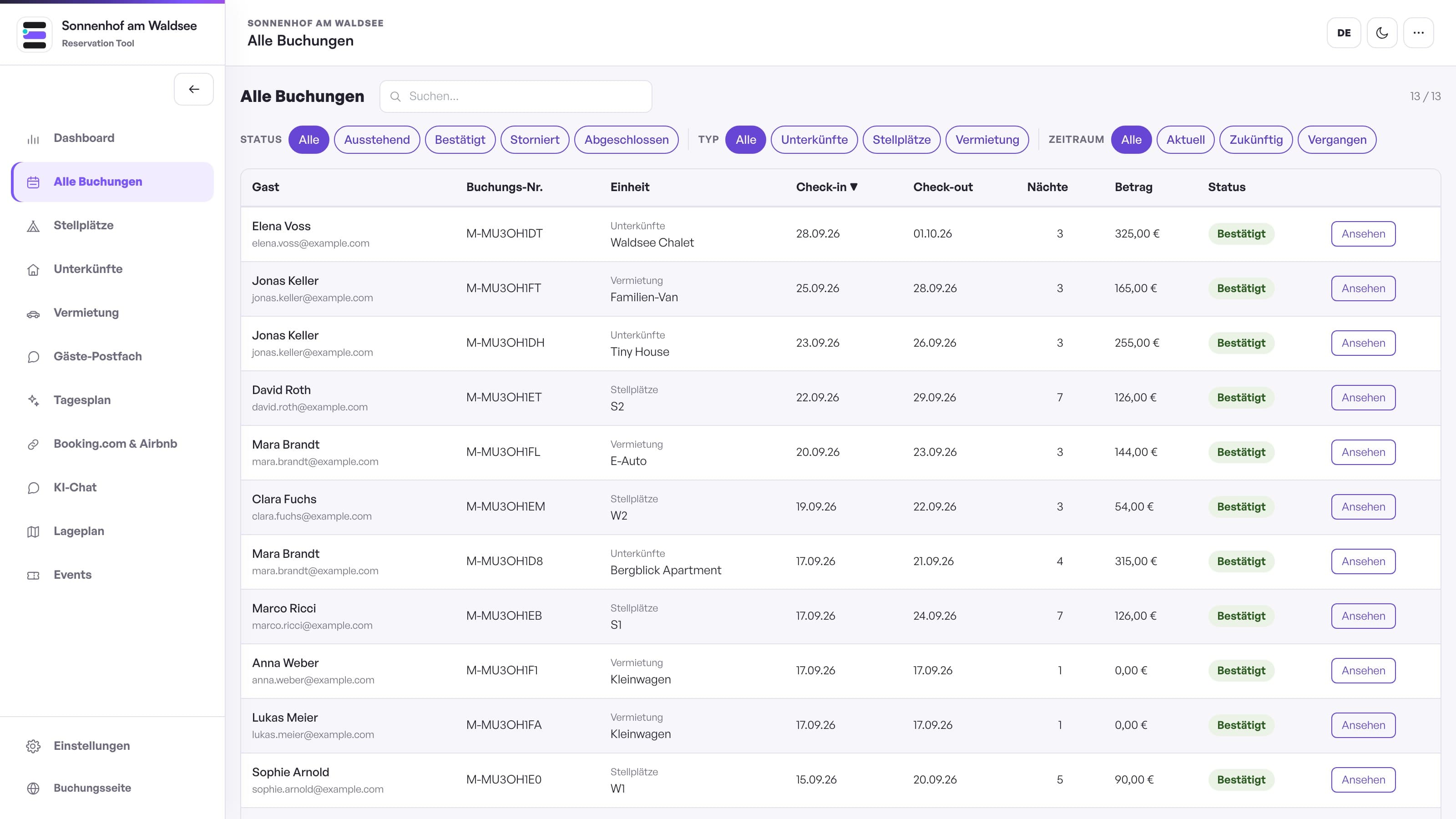
Store your business details in the invoice editor. KISB then applies them consistently to guest invoices.
KISB clearly shows where a payment status comes from, so your team knows what was detected automatically and what was entered manually.
Online payments can be assigned automatically to the booking and payment history.
Transfers are recorded manually until a separate bank connection is activated.
Deposit, balance, Stripe payment and manually recorded transfer combine into the outstanding amount.
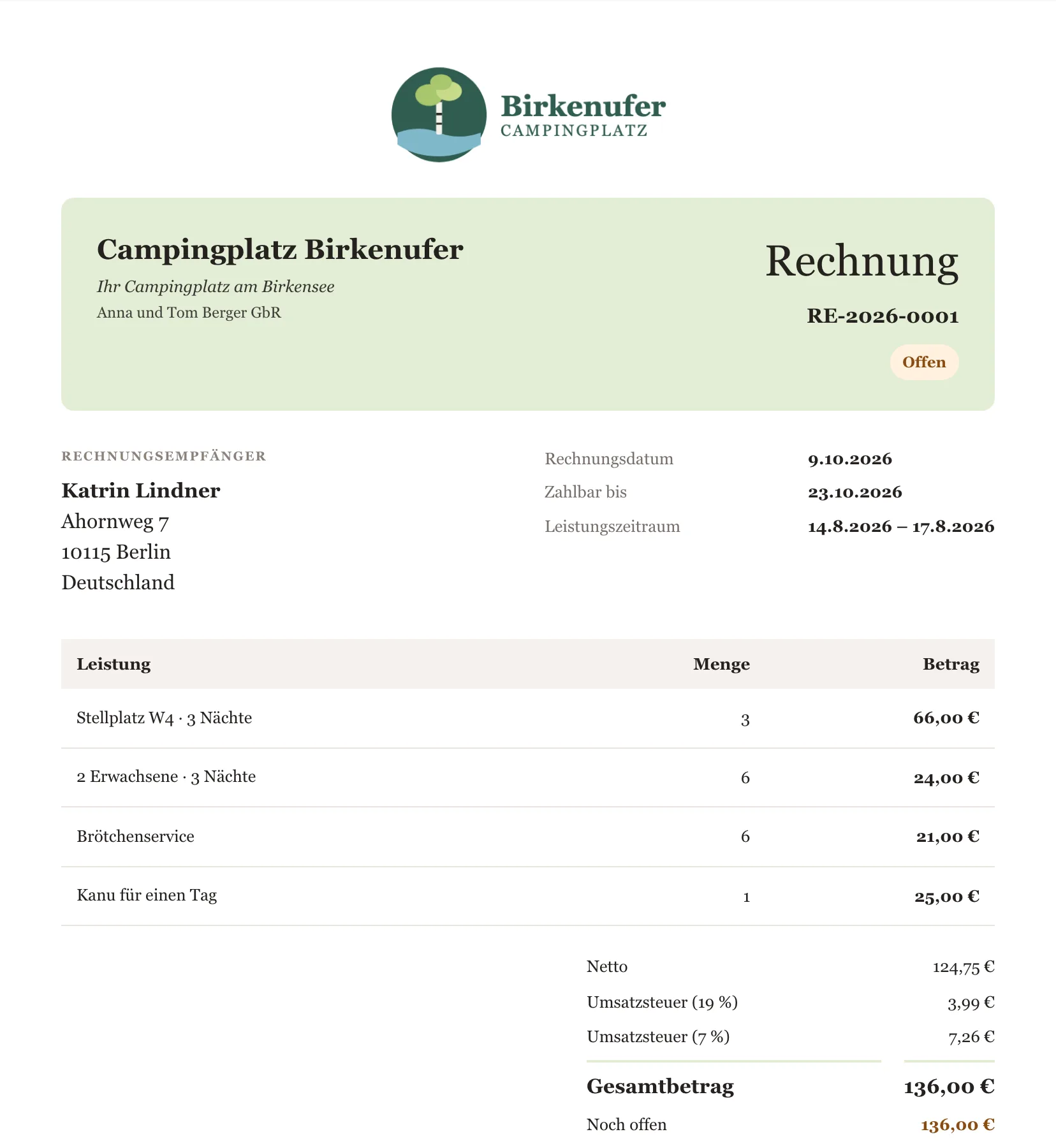
KISB supports the creation and documentation of guest invoices. Please confirm the mandatory details and tax rates that apply to your business with your tax adviser.
Try the administration yourself or review the suitable KISB plan first.
No appointment, no sales call: try the demo, watch the short videos and start when it suits you. With a 30-day money-back guarantee.
The live demo with sample data, no sign-up: booking page and admin.
Open live demoThe guide in short videos, from quick start to moving over from your old software.
Watch all videosCancel monthly, setup is currently free. You set up your system yourself, step by step.
Get startedWe reply by email, usually within one working day.
Already have a system and a problem? Please use “Report a problem” on the support page. That way your message reaches the right place. Go to the support page
An AI assistant (Claude by Anthropic) answers here. It knows the offer, the prices and the most common questions — just ask in your own words. Your messages are not stored and are not used to train the AI. To improve the chat we only record what a question was about — such as “pricing” or “privacy” — and whether we could help. Never your words, never personal details. Click “Start chat” to begin.
More about privacy